Cyber Self-Defense 101
The Martial Art of the 21st Century
November 2026
Do you:
- share passwords across services?
- know if your passwords are complex enough?
- write down said passwords on a post-it note or a digital text file so you don’t forget them?
- store private or sensitive photos in someone else’s computer (Google Photos, iCloud…)?
Personal cybersecurity teaches you self-defense in the digital arena.
But why should you care? After all, there’s nothing special about you… digitally, of course, as I’m sure you’re special in your own way as a person. Maybe you’re not a government worker holding secrets of national interest. You may also not be someone with millions in their bank account to steal. It’s possible you haven’t been following any cybersecurity gold standard for years, and everything has been going great so far… right?
Not so fast. You may already have been made vulnerable without even realizing it—yet. Sites such as haveibeenpwned.com include billions of addresses involved in known data breaches and leaks. You can use it to check if any of your emails is on the list.
Does that mean you’re forever behind and there’s nothing you can do? Especially if you don’t consider yourself to be very tech-savvy, does that mean you are just doomed? Also untrue. Cybersecurity is akin to a martial art, and like one, you do not need to be a black belt to benefit from its teachings. Even black belts benefit from the basics all the time.
Security is first and foremost a mindset and an understanding of the problem, not a collection of tools and solutions. If you use a tool but don’t know why, you’ll run the risk of abandoning it without a proper replacement for the underlying problem. You’ll also risk misusing tools, which can backfire in a way that defeats their purpose. If you just came here looking for what is the best password manager, for example, I recommend using a search engine or an LLM instead. Tools come and go, so the recommendations for those can shift over time. The problems they address, however, will likely be the same.
My goal is to teach you the very basics of the threats you face, how an adversary could gain leverage over you, and the technologies some very brilliant people have developed to help secure one’s digital estate.
Though not a tiny article, it’s also far from what I’d consider a comprehensive overview. If a lot of this information happens not to be new to you, there’s always less savvy friends or family members you could share it with to help them defend themselves.
The arena
Do not make the mistake of dismissing yourself as an attractive target just because you feel you don’t have much to lose.
For one, it’s likely you do have more to lose than you realize:
- Access to your homebanking or online broker could put your savings and investments at risk. No matter how small they are as a % of GDP, they’re still up to 100% of your net worth.
- Your medical history can reveal a lot, and it’s information that predatory insurance companies could use against you to overcharge for or outright deny you certain services.
- Your private photos can be intimate or revealing enough that they could harm your public image, career, and personal relationships. That also makes them an attractive target for blackmail.
- Your notes and journals, if you keep them, will contain your most unfiltered thoughts and controversial opinions, something a paranoid government could be interested to know about you. And even if you don’t live under one at the moment, circumstances may shift faster than you expect.
The second factor is the ease with which you can be exploited. As with a physical fight, both sides matter: your opponent, and you.
How strong is your opponent? Your adversary doesn’t need the entire knowledge and capability of an organization like the NSA in order to breach you. Even an inexperienced malicious actor armed with powerful tools (colloquially known as script kiddies) can deal great damage. With the advent of LLMs, the tools are only getting more powerful. And with no doubt at some point in the future, AI systems won’t just be tools that your adversaries use, they will be the malicious actors themselves.
And how strong are you? That’s what we’re here for.
Any decent martial arts school will teach you the most important self-defense strategy during the very first class. No, it is not a punch. It is also not a kick. Every time it is possible to do so, the smartest strategy is to avoid conflict in the first place by means of de-escalation, simply running away, or circumventing shady neighborhoods. You can’t be harmed in a battle you’re not a part of.
Is the advice reasonable for our use case? What would it take to avoid stepping into the digital arena? Though a photo album on your bookshelf can be an interesting thing to go through when you’re hosting guests for a dinner party, going back to a purely analog past is less and less realistic.
Take the act of shopping as an example. To avoid anything digital, you’d pay cash. But how do you get cash nowadays? Unless you have a gig on the side where you’re paid under the table to avoid the bogeyman that is the tax authorities, your employer will require a bank account to wire your salary to. You could try to retrieve some cash in person at a physical branch, but if that weren’t cumbersome enough, more and more banks don’t even have physical branches anymore! So you’re left with no choice but to interact with yet another machine: the ATM. But your cash would only get you so far. Some stores only allow you to pay by card or phone, requiring you to initiate a digitally mediated transaction. And how about that specific item that isn’t even sold in your country if not online?
Shopping isn’t an isolated case. Depending on where you live, it might even be impossible to dodge government, school, or medical portals. And even if you could, would you want to? The digital arena is attractive for its convenience. Filing taxes, booking flights, networking—all use cases made much simpler in the modern world. We got rid of the cabinets full of papers, receipts, maps, phone books, letters, chunky encyclopedias, photo albums. We don’t want to bring all of those back.
While not entering an arena is still a valid option you should keep in your mind, my focus will be on how to enter it safely. So, what does a typical arena look like? When you’re just browsing the web, such as jumping from one Wikipedia article to another, there aren’t many security threats to be aware of (though there can be privacy concerns not explored in this article).
But when you need a service or a product, the respective website or app will require some sort of durable identity for use across several sessions. This article will focus on the simplest, most prevalent model: the basic user account.
User accounts
The credentials of a basic user account usually involve at least two strings of text:
- a unique identifier, such as a username or email,
- and a key, commonly a password.
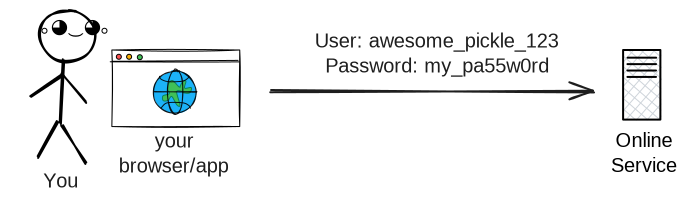
It’s a model you’re likely to be familiar with. You’ve been there before and probably so often that you’ve grown tired of it. Want to buy an item online? Sign up for an account! Want to chat with your friends online? Sign up for an account! You want to use an online broker? Sign up for an account! While writing this article and out of curiosity, I tried to count the number of accounts I have and I got to around 140. Trust me, the number surprised me more than it surprised you.
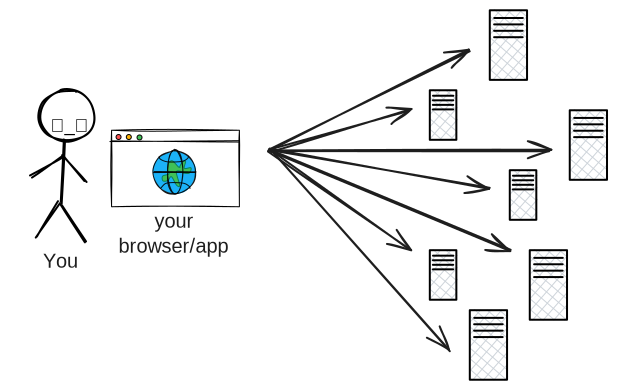
As far as security is concerned, the most relevant element of a user account is the password. It is a means to prove you are who you say you are. Importantly:
- You pick it.
- You remember it.
- You type it.
- You hit send on a website.
- It travels through the network to the service.
- And if the service hopes to recognize your password the next time you send it, then it needs to store at least some information about it.
Which of those steps could be considered a security vulnerability? That’s right: all of them.
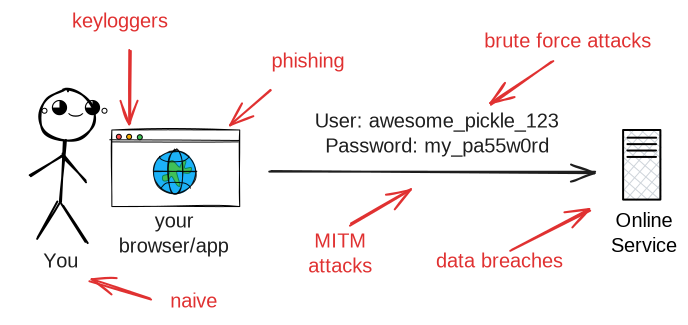
But I listed steps that don’t even happen on your computer, so which of them can you actually do something about? Believe me or not: also all of them.
Let’s work our way from the end.
The service
Where is the service? You may have heard that services are hosted on servers. What are servers? If anyone ever tries to tell you they’re anything other than a normal computer, you can tell them they’re wrong. Unless you printed this article on paper (please don’t waste paper), the device you’re reading this on could most likely work as a server.
My last bullet in my listing above brings up an interesting point. How can services verify your password is correct? After you introduce your pin on an ATM or credit card reader, what does the system verify it against? A naive implementation can be as simple as having the server store the whole password, verbatim, upon sign-up. Then, on every login, the server would do a simple character-by-character comparison between the password you sent it and the one it had stored for the given user.
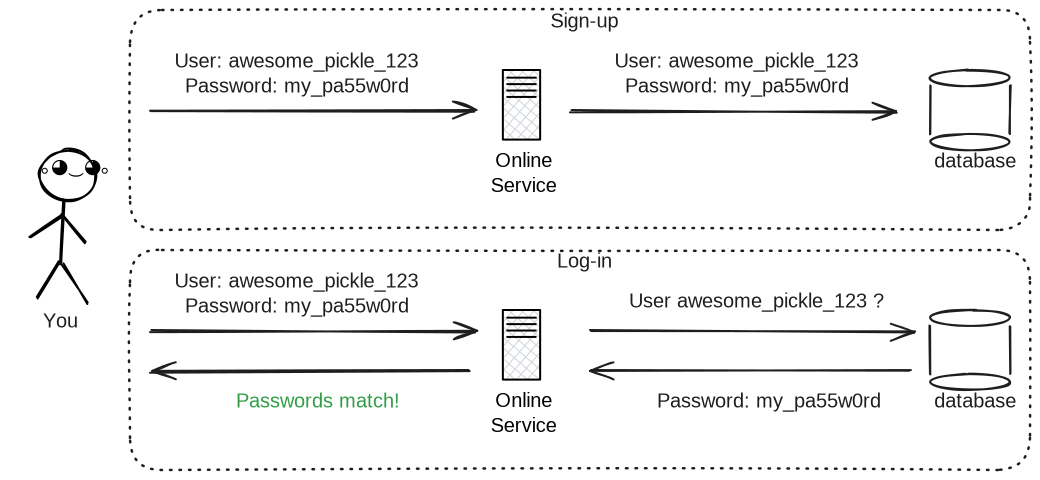
This works, and its simplicity makes it attractive for service developers, but it’s generally considered a bad practice. Why? Enter our first threat: data breaches and leaks. Most often, these occur when malicious actors figure out a way to retrieve user data stored server-side, and it can happen to anyone:
- 2013, Over 150 million breached records from Adobe hack have surfaced online
- 2014, eBay asks 145 million users to change passwords after data breach
- 2016, 360 million Myspace accounts breached
As I already mentioned in the intro, you can use sites such as haveibeenpwned.com to check if any of your accounts has been leaked in known data breaches. Why do I emphasize the word known? Because even the service itself may not be aware they’ve been breached. In fact, a lot of breaches only reach public awareness when the attackers post the extracted data online.
A big takeway here, if it wasn’t obvious by now, is to avoid password reuse. If someone learns what password you use on eBay and it happens to be the same one you use for Amazon or your online broker… I’ll leave the full span of potential consequences as an exercise for the reader. A second straightforward takeway is to rotate your passwords, especially when a breach affecting you is made public.
To reassure you ever so slightly, most companies following the bare
minimum security practices don’t actually store passwords in
plaintext, i.e. exactly as you typed them. Upon sign-up, they
apply a transformation (a hash function) to your password that has two
properties: it is irreversible and deterministic. That might mean
nothing to you without an example, so let’s say your password is just
password (please don’t actually use password
as a password). SHA-256 transforms
password into 5e884898da...721d1542d8 (the
hash, truncated for brevity). You don’t need to know that last string of
characters actually corresponds to the hexadecimal representation of 256
bits of jargon. What you want to know is that there’s no known
mathematical way to reverse the process and arrive back at
password. Hashing is an impressive technology, and you
should consider reading more about it you’re interested in the
subject.
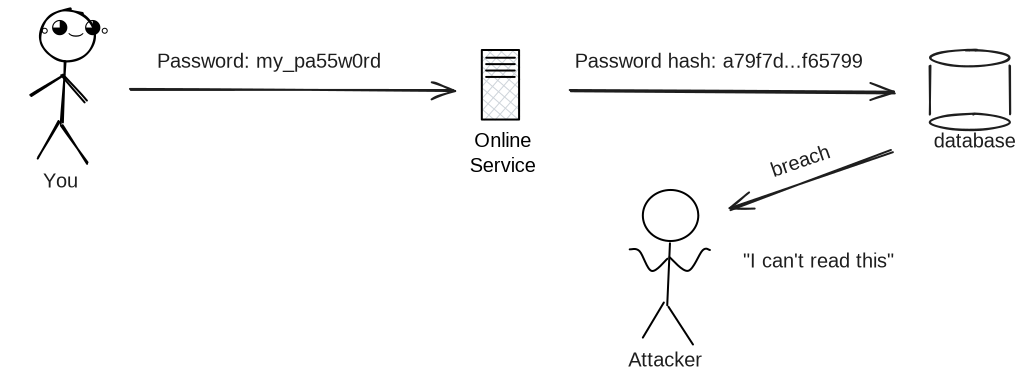
So is the hash what services store? After all, if there’s no
mathematical way to reverse it, then it seems adequate to do so. I don’t
want to dive too deep on this as it starts to get slightly tangent to
our user-focused exploration, but the answer is no—or it shouldn’t be,
not yet. Remember the second characteristic I mentioned: the hashing
process is deterministic. If you paste
5e884898da...721d1542d8 (even in this truncated form) onto
a search engine or even an LLM (tested with GPT-6 Luna), you’ll be able
to figure out it’s the SHA-256 hash of the word password.
This happens not because someone found a way to reverse SHA-256, but
instead because password is unfortunately a popular
password. Many people have ran it through all the known hashing
functions, so they know what the output looks like. People do this for
all the passwords users are known to use (there are collections built
from past breaches) and keep tables mapping from the hash to the
original text. These are known as rainbow tables. The takeaway is, thus,
to avoid common passwords.
One neat thing about hashing functions is that small changes to the
input often have drastic changes on the output. The server can add a
small random string of text to your password, and the hash will be
unrecognizable. For example, the hash for a7b2_password is
7416558d04...9d4301ab8f. Luna has no idea what that means
anymore. That random a7b2 (which I’ve chosen to separate
from the password with an underscore for visibility purposes) is known
as a salt, and the salt can be safely stored in plaintext along
with the new hash.
Why did I bother with the technical details? Even if you’re not interested in the technology, you may still want the services you use to rely on it to secure your accounts. You should be aware that nothing actually forces services to hash and salt your passwords, or that they do so while employing state-of-the-art algorithms. To my knowledge, there’s also no law or regulation mandating that services limit failed login attempts to defend against brute force attacks, a kind of attack we’ll discuss later on. The takeaway here is to think twice before creating an account with a service that may not have much of a reputation to uphold or one that looks like it may have been developed by an amateur.
As a small aside, while you should be mindful of how much trust you place in a service, companies and organizations with reputations to uphold are also mindful of how much trust they place in you to follow proper password hygiene. That’s one of the main drivers behind the push for strategies like multi-factor authentication. As someone who follows good password hygiene, I have my personal grievances against this push, but few actual complaints from a security standpoint.
To summarize the takeaways from this section:
- Avoid password reuse
- Rotate your passwords, especially after breaches that could include your data
- Avoid common passwords
- Think twice about what credentials you share with amateur or shady services
The network
By now you know that a minimally secure service will not store your plaintext password at rest, meaning that when you’re not interacting with the service, your password does not exist on its servers. But for the server to hash your password during a sign-up and login, it must have received it in plaintext. Does that mean your password must travel through the Internet in plaintext as well? And what are the risks of that?
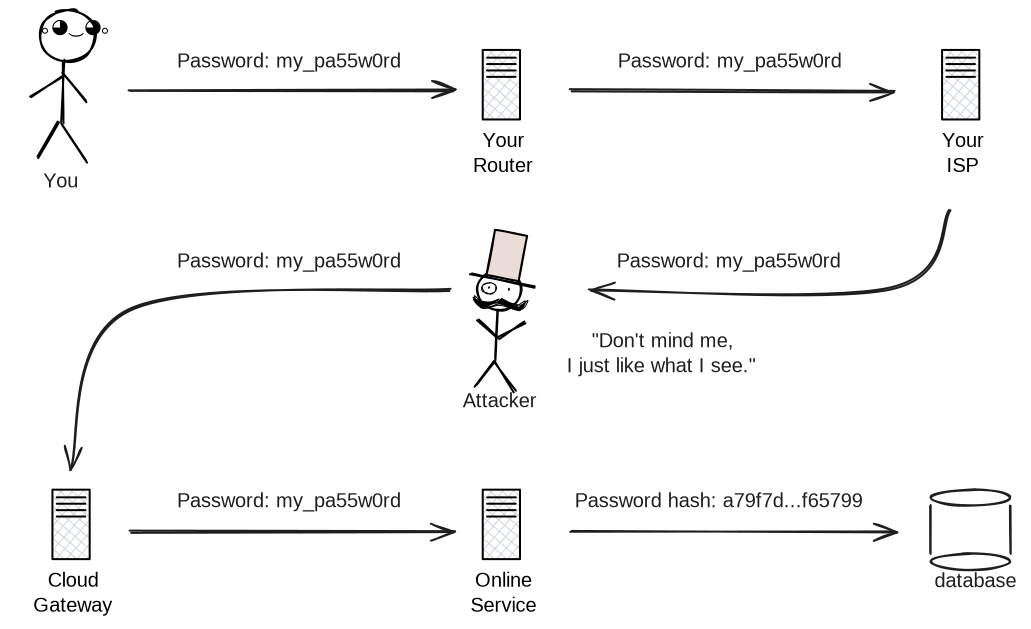
Whenever you connect to a server, your network request does many hops until it gets to its destination. Unless you plug an ethernet cable directly from one computer to another, you’re always likely to have multiple relays forwarding your data. If you’re at home and connect your phone to your home automation system, your commands still go at least through your router. If you connect to a machine outside your local network, your request will additionally go through your Internet service provider (ISP) and potentially other unrelated entities along the way. If this sounds insecure to you, you’re gaining the right intuition.
Each hop is a machine you don’t control, and nothing guarantees all these extra entities won’t try to inspect whatever you’re sending through them. What’s more, they can drop your request and send a tampered version on your behalf. These are know as man-in-the-middle (MITM) attacks.
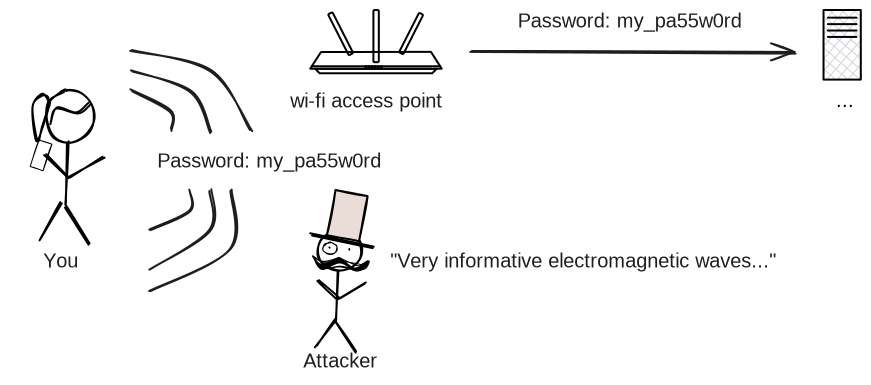
But hops aren’t the only concern. You may be vulnerable even before your request reaches the very first router. Let’s say you’re on your laptop at your favorite café, morning latte in hand. Actually, you don’t even need to leave your house for this example, assuming you live in an apartment building. On Wi-Fi, your laptop or phone will broadcast your credentials in every direction. Any malicious actor in the vicinity equipped with nothing but their own laptop and the right piece of software (such as Wireshark) can try to inspect all the valuable information you’re sending through the air without you even knowing about it.
The solution for both these problems relies on a technology we haven’t yet discussed: encryption. We’ll discuss it in greater depth later on, but for now, know that encryption is a process to scramble data in a way that can only be reversed by someone holding a shared secret. But hold on a moment, didn’t we just talk about some sort of data-scrambling strategy in the previous section where we spoke of hashing? Is it the same thing? No, not quite. Remember that, with hashing, the output was intentionally irreversible. Encryption is different.
Allow me to suggest a mental model. Think of encryption as a lockbox or a safe. You place a letter in it, lock it with a key or combination, and then fearlessly ship it to the appropriate destination. If someone intercepts your communication, all they see is scrambled data. Without the key, they can’t read it.
What key are we talking about? For Wi-Fi, assume it is the Wi-Fi password (it is actually some derivation of it, but the details are less important). That’s how you prevent your neighbors from snooping on your communications, assuming they don’t know your Wi-Fi password. The takeaway is clear: properly secure your Wi-Fi password.
We’ll talk about what a good password is later on, but for now, consider something specific to Wi-Fi passwords which is that they come pre-configured. A random string of characters printed on a small label on the back or under the router your ISP set up for you. If it’s already written down, then you don’t even need to remember it. How convenient! But the convenience comes at a cost. Even if you’ve never shared the password with any guest, you cannot assume you’re the only one who knows it. Even if you really insist on having it written down on the router, consider changing it anyway and taping a new label on it. How to change it will depend on your specific router, so feel free to use a search engine for this step.
How about public networks where multiple users know the password? Can they know exactly what data is flowing between you and the Wi-Fi access point? The unfortunate answer is that it’s safer to assume that they can. Wireless networks implementing only WEP, WPA, or WPA2 security standards are vulnerable to it. The newer WPA3 from 2018 is supposed to address that and other flaws, but the adoption of new standards is always a slow process. You might be able to check what security protocols the network supports on your device’s network settings. Additionally, you might even be able to block your device from accepting communications that use outdated standards. For example, my phone lets me disable all WEP-based networks, though not WPA or WPA2 since they’re still too common.
And by now you’re asking: how about password-less networks? You’ve most likely connected to one before, perhaps at a mall or an airport. There, WPA3 is also making strides, bringing some level of encryption between the public hotspot and the end device. But for older security standards, it is the worst-case scenario. Assume anyone can see the bytes as they fly through the air between your device and the public hotspot.
But how can that be? People log in to services while connected to public networks all the time. They broadcast their credentials and sensitive data. If Wi-Fi can be this insecure, how do people keep getting away with it? To answer that, let’s look beyond Wi-Fi for a bit.
Normally, the wireless part of a network request is but the first of many hops, with the remaining journey happening through copper wires and fiber-optic cables. To prevent snooping, our sensitive data, whether that be your credentials or private photos, needs to travel encrypted over the whole journey. As we’ve seen, encryption requires a key—a shared secret. But what key will lock and unlock that lockbox? The Wi-Fi key? It’s a secret shared between you and the Wi-Fi hotspot, but I doubt Amazon or Netflix know it (in a tinfoil-hat moment, I consciously refrained from using Google, Apple, or Microsoft as examples).
How then can you and the service agree on a shared key to use when
securing your communication? You’d need an initial unencrypted request
saying “let’s encrypt our communication using abcd as the
key”, but if that’s unencrypted, an attacker could read it and learn the
key, defeating its purpose. An alternative could be to meet in person
with whoever operates the service and … no, that’s ridiculous. What are
we missing, then?
I will not dive into many technical details here, but the actual answer breaks our lockbox analogy. Imagine that, instead of one key, you have two: one that locks, and another that unlocks. That’s the core idea behind asymmetric encryption, and there are few examples in the physical world of such a mechanism, making the technology that much more remarkable in my opinion. I suggest reading up on the subject, even if superficially, but for now, think of it as the missing piece that lets two parties initiate an encrypted conversation remotely.
The important question now is: how can you make sure you’re
benefiting from this wonderful technology? If you’re reading this on a
web browser, the answer may be right on your URL bar. If your URL starts
with https:// (note the s after
http), that means you’re using the secure version of the
Hypertext Transfer Protocol (HTTP). The added security actually comes
from a standalone protocol called TLS, which is also used in other
applications like messaging, email, and so on.
Another very important benefit of TLS is the concept of certificates. Not only can you rest assured you’re communicating in an encrypted way, but you can also be sure the services you’re communicating with are who they say they are. You wouldn’t want to send your credentials to some kid in a basement pretending to be your online broker. I’ll also not go into further details on concepts such as certificates and certificate authorities, but feel to explore them on your own.
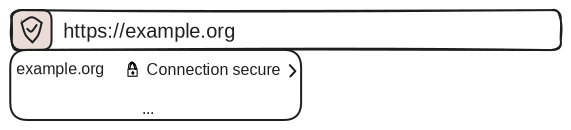
The good news here is that most browsers already warn and block you
from accessing simple http sites by default. You can try it
out by visiting httpforever as an
example. If your browser does not give you any warning watsoever, you’re
either using a very old one and should update, or it may be time to
revise your settings.
If you still need to consult a bare http site for some
reason, that’s not the end of the world. But hopefully by now you know
that doing so means your communication won’t be encrypted, and the
takeaway is to avoid entering any credentials or other sensitive data on
such websites.
Circling back to Wi-Fi, HTTPS is what lets you safely navigate the web even in password-less wireless networks with outdated security protocols. Does that mean you can safely forget everything I’ve just told you about Wi-Fi security? No. There will always be some traffic that leaves your device unencrypted, but hopefully that will be less and less over time. The advent of DNS over TLS/HTTPS is another such example, though DNS is out of scope for this article.
You may have noticed how we mentioned a lockbox—our metaphor for encrypted communication—both when talking about Wi-Fi and when talking about HTTPS. Does that mean that, for the wireless part of the journey, we’ll have a lockbox inside another lockbox? Yes, it does. Security through layers is a very common and successful pattern.
To summarize the takeaways from this section:
- Make an effort to change the default password of your home Wi-Fi
- On public Wi-Fi networks, be mindful of your online activity
especially when:
- the network is password-less
- the security standard is WPA2 or older
- Never enter credentials and sensitive data through bare HTTP rather than HTTPS
The website
I’ll reduce this section to an example. You’re an avid Amazon shopper, and you receive a promotional email with a latest offering you cannot miss. It’s exactly the product you’ve been looking for. On top of that, it’s also at a 50% discount that ends in 48 hours.
You click the link in the email and there it is: a full-sized photo of your dream watch, pair of shoes, what have you. The discount is even greater now at 60%. You add the item—you add it twice, might as well—and proceed to the checkout. You enter your credit card details and all your billing info and hit send. The purchase is confirmed, and you feel accomplished.
The next day you wonder about the status of your purchase. Is it already out for shipping? You go look for it in a confirmation email only to realize you never received any. Strange. So you open Amazon and look at your recent orders, but there’s no sign of your amazing purchase anywhere. How could that be?
Puzzled, you go back to the promo email and notice your mistake. Both
the mail address and the promo link in the email’s body link to
amason.com rather than amazon.com,
i.e. someone swapped the z with an s. Who owns
the misspelled version? Who did you just send your credit card and
billing details to?
If you work at a company with a mandatory cybersecurity course, you likely know about this one already. It’s called phishing, and in the age of LLMs, it’s easy to draft personal and believable emails en masse.
It doesn’t matter if your communication is encrypted. If you don’t check you’re in the right website, you risk having your sensitive data end up in the wrong hands.
My example is close to a worst-case scenario, but just clicking the link can already be detrimental. Whoever the malicious entity at the other end is, they will be able to tell when you clicked it, from which IP address, using what browser, and so on.
Amazon itself tries to protect its users against phishing. At least that’s what I assume they were thinking when they went as far as buying (at least) the following domains, all of which redirect to amazon.com:
I’m sure there are several more combinations. As far as my
amason.com example, the domain is for sale at the time of
writing.
Subdomains are another concept to be aware of. You may have seen certain URLs with multiple periods such as in aws.amazon.com—their cloud services. The important thing to note is the order of these dot-separated words; subdomains appear to the left of the domain. Thus, you should always pay attention to the rightmost word.
With email addresses, the domain is to the right of the
@ character.
Assuming you’re targeting example.org, here’s a short
summary:
| Safe | Unsafe |
|---|---|
example.org |
exmple.org (typo) |
billing.example.org |
example.evil.org (wrong domain) |
support@billing.example.org |
billing.example@evil.org (also wrong domain) |
The takeaways from this section are already pretty clear, but just to reiterate:
- Pay attention to the sender addresses of emails you receive
- Double-check you’re interacting with the right website, especially before you send sensitive data
Typing
“Typing?” you ask. Indeed, what could go wrong here? We’ve been discussing managing credentials, and how the password is what secures your account. Thus, your password being compromised represents a security risk. The main threat here is the same.
The attack vector comes from a third party being able to tell what you’re typing as you’re typing it. I’ll distinguish two kinds of third parties: outside observers and embedded ones.
The first is self-explanatory. When you’re typing your card’s pin at an ATM or cashier, someone looking over your shoulder could physically see what keys you press. The same could be said if you’re typing a password on your phone or laptop while in a public space. If you’re alone, does that mean you are safe? No. Criminals have been known to place cameras on top of ATMs, facing the keypad. If you must type a pin or password in public, consider covering your typing hand with your other hand.
Websites and banks try to protect you from this threat by visually
replacing every character you type with another character, often the
asterisk (*). If you’re in public typing a password on a
service or machine you’re not familiar with, consider first typing a
random character and then deleting it to see how it shows up on
screen.
Let’s say there’s someone behind you looking in your direction, but you’re covering your typing hand and asterisks show up in the password field. Should you preface your typing with a short stare toward the person so they face away for a moment? You might not for fear of coming across as rude, but for the sake of completeness, I’ll give you a small reason to. If every single character is replaced by an asterisk, then by the time you submit your form, the number of asterisks on screen correspond to the exact length of your password. For your typical four-digit pin number of you bank card, that’s information an attacker already has. But for your other passwords, that’s new information that could be used against you. That’s especially relevant when we consider services that employ no security measures against brute-force attacks, which we’ll discuss in greater detail later on.
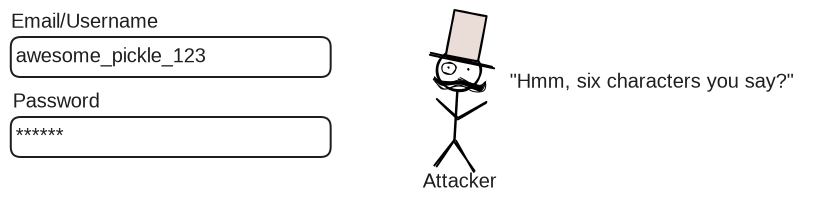
As for the second type of third parties to look out for, I previously called them “embedded,” but what did I mean by that? Let’s stick to the ATM as an example. An attacker can tamper with the machine to add new parts over the existing ones in order to extract your card data. They can also place a keypad on top of the existing one to log the key presses of unsuspecting victims. Do parts feel loose? Does the machine look different from what you’re used to? These are things you should ask yourself before committing to using a machine. If you’re unsure, find another.
But physical tampering of the hardware isn’t the only threat in this category. Software keyloggers are also a thing. They can capture every key press and even send that information in real time over the Internet. For detection, you could try to open the task manager of whatever system you’re on and see if any unfamiliar process catches your eye, but nowadays there are always so many processes running on a system that it’s hard to know friend from foe.
For the average person, it’s much easier to avoid keyloggers than it is to detect them. If you’re using a computer you don’t own, you should be especially reluctant to type anything sensitive. Even if that computer is in a reputable place like your local library and you trust their physical keyboards, consider how lax their security is on the software side. Do they allow anyone to install programs on the system? If so, that means someone before you could have left malware running that captures your activity. As for your own computer, as long as you avoid installing anything you’re unfamiliar with, you should be fine.
The key takeways in this section are:
- Be aware of observers looking over your shoulder when typing passwords or pins in public places
- Cover your typing hand with your other hand
- Confirm that your password does not appear as plain text on the screen before you type the whole thing
- Pay attention to signs of tampering on whatever machine you’re using, such as a wonky keypad on an ATM or a loose cover on a card reader.
- Think twice before typing sensitive data on computers that have a higher risk of being infected with malware
Remembering your credentials
I’ve made an effort for ever single section to have actionable insights. In this journey backward, the more we distance ourselves from the service and approach you as the end user, the more important those insights are. The reason is that there’s less of a shared responsibility at this level. The services you rely on can only do so much to protect you, but there are things they (rightfully) don’t have control over. One of those things is how you chose to remember your passwords.
Humans have a hard time remembering things verbatim. A script for a play? Prepare to rehearse endlessly and even then you should get comfortable with improvisation to fill in your memory gaps. But your home address? That’s simple because you normally only have one, it rarely changes, and you have to share it often. But wait. Don’t passwords share similar characteristics? You have to introduce it often, and you technically only really need one. Additionally, unless we’re talking about a work password your employer forces you to rotate every year, you also don’t really need to change it.
The temptation for convenience plays against you. We’ve already covered the dangers of password reuse. We also discussed how you should consider rotating them once in a while, or at least after known breaches. But now, instead of a single password, you have many. I’ll spoil you the fact that there are convenient ways to deal with this problem so you know where this is heading, but I’ll build to it incrementally in a way that mimics my own journey and potentially yours too.
I’ve told you before my user accounts number around 140 at the time of writing. Even if your number is much lower, it’s still likely nontrivial. If you have perfect recall and are confident you can remember 30 passwords or however many you have, then you can stop reading here and skip to the next section. For mere mortals, the task can be so tiresome that a term exists for it: password fatigue. How do you deal with it?
Tell me if you’ve done this before. Your work—or school—password is
my_password and your boss—or school platform—tells you that
you have to change it and that you cannot pick one you’ve used in the
past. Bummer. You already had the trouble of memorizing it, and now that
memory is useless! Not on your watch. So you go ahead and change it to
my_password_2. And next year? my_password_3.
Which number are you at? Is it my_password_5? That’s
starting to get too hard. Let’s use the year instead:
my_password_for_2026. Much better, right? What could go
wrong? Well, the risk is clear. If an adversary finds out in 2026 that
you used to have my_password_for_2023 as a password three
years prior, what do you think will be the first thing they try?
How about your services? Ever followed a similar practice there?
Check these out: my_password_for_amazon,
my_password_for_ebay, my_password_for_netflix.
You only have to remember one common prefix, and the rest you can just
look at the name of the service you’re logging in to. Again, same threat
as above. If anyone learns your prefix, all your accounts are suddenly
compromised until you rotate every single one of the passwords that
follow this tempting pattern.
Being locked out of an account can be a big hassle, so you do whatever you can to make sure you’ll remember all your passwords. But if they’re all vastly different, it seems unfeasible to keep them only in your head. Enter the usual next step: the post-it note.
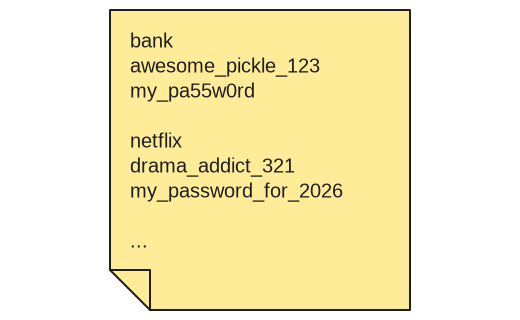
After all, the default Wi-Fi password looks like a complex random string of characters, but you don’t need to remember it because it’s written down. Convenient! We’ve discussed before how you should at least change default passwords, but you should also consider not embracing the strategy of writing them down.
From a security standpoint, a post-it note is only as good as where you choose to keep it. If you glue it to the edge of your computer monitor at the office, even the janitor could try to log in to your system and email the payroll department to wire your next salary to an IBAN he controls. Most companies have additional verification steps before accepting such a change, but hopefully you understand my point.
Alternatively, you can keep your highly secret post-it at home. Do you trust every single person that walks into your place? The cleaning lady? The electrician? The plumber? The contractors redoing your kitchen? “Fine,” you say before securing your post-it note with all your passwords in a safe, locked with a key you keep close to you at all times. It’s likely that I’ve just lost you on this last step, as most people looking for a practical solution won’t go as far as using a personal safe. However, keep the idea in mind because our end strategy shares many similarities with this approach.
There are two other downsides to writing down passwords. First, can you really afford to lose them? A piece of paper can degrade, the ink washed away by a water spill or covered by a coffee stain. It’s also easy to misplace or throw in the trash by mistake. And in the unlikely event your house burns down, a piece of paper would also burn along with it. Some accounts you can recover with an email exchange or proof of identity. But what if your email password was also in it? And how about that bitcoin wallet you’ve been keeping for a decade? Permanent loss.
The second issue is availability. You may need a password at home, at work, or on the go. Maybe you traveled all the way to a foreign country only to find that you can’t reach your Airbnb host because you got logged out on your phone and you can’t recall the credentials. Do you keep a post-it note on you at all times? Also doesn’t sound ideal. You could lose it, it could get stolen if you get mugged, or it could end up doing endless cycles with soap and water in the washing mashine if you forget to take it our of your pocket before throwing your pants in.
A fix that addresses both downsides is replication. If you keep multiple copies of this post-it note, each in a different place, then you’ll likely still have a copy somewhere even if your house burns down or if you get mugged. The only concern in this scenario is to make sure you rotate all your passwords if you think one of the copies of your post-it note may have been compromised.
But this is starting to get cumbersome, and it’s also unlikely you’ve gone this far as well before trying something else: going digital. The digital realm is already where you actually need most of your passwords anyway. Additionally, there’s an added piece of security depending on the device where you choose to store your digital post-it note, which is your laptop’s password or your phone’s unlocking mechanism.
So how might you feel inclined to do that transition? You may be
tempted to open a text editor like Notepad and put all your credentials
there, one per line. Each line would map a service to a username (or
email) and the respective password, such as:
netflix | bob@example.org | iHateHorrorMovies123. Trying to
be smart, you then save it deeply nested under some hidden directory in
a file called definitely_not_my_passwords.txt that will
surface front and center in your recently accessed files
anyway.
Many of the risks with this naive approach are still the same, but there are some new ones as well. What if you are screen-sharing and open the file by mistake? And if you replace your laptop, did you know that you should zero out your older hard drive? That means overwriting it with zeros, often multiple times, to make sure the contents are irrecoverable.
But you’re a clever individual, so you try another approach. Instead of writing down the actual passwords, you write down hints you think only you know how to interpret.
| Password | Hint |
|---|---|
daisy$31 |
dog dollar street number |
2021-01-23 |
when I first got covid |
4439852 |
8473 times my favorite number |
This naive approach is known as obfuscation. It’s better than plaintext, but the passwords are still crackable. A hint can be a good mental crutch for you, but it also narrows down the scope of possibilities tremendously for an adversary. Additionally, personal details we may try to use this way can be more public or discoverable than you’d anticipate.
Even for you, it can also be tricky to translate every single hint. Maybe you can figure out the basic elements, but then you might ask yourself: “Did I add spaces? Did I capitalize the letters?” What if there’s a more predictable strategy to hide your passwords in plain sight?
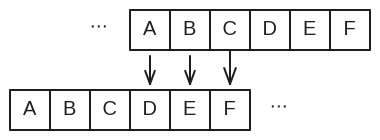
Let’s say that, instead of storing a hint, you transform your
password in a deterministic and reversible way. As an example, picture
the alphabet, and imagine you shift every letter in your password three
places to the right. That is, A would become
D, B would be come E, and so on.
Thus, your very secure password would become
sdvvzrug. This simple method is called a Caesar
cypher.
| Password (plaintext) | Caesar cipher (ciphertext) |
|---|---|
password |
sdvvzrug |
julius caesar |
mxolxv fdhvdu |
veni vidi vici |
yhql ylgl ylfl |
alea iacta est |
dohd ldfwd hvw |
One can consider this to be entry level encryption. We introduced the concept in the network section where we used the analogy of a safe or lockbox with a key that guards your secrets. What’s the key in our Caesar cipher? It’s the information needed to reverse the operation that will get you from the ciphertext back to the plaintext. In our example above, we used a shift of three to the right, so we’d have to shift left by that many places to decipher the code. But we could have chosen another key. For example, we could have easily opted to shift our initial text twelve places to the left instead. Whatever key you pick, it’s less to remember, assuming you’re consistent.
You may be questioning whether this ancient cipher is secure by modern standards, and you’d be right to do so because it isn’t. There’s a very limited number of possible keys—also called the key space—which is given by the length of your alphabet and one of two directions. For the basic Latin alphabet, that would be 26 letters times 2 directions, left or right, totaling 52 combinations—or 50 if you exclude the possibility of shifting 26 places, which would cause the ciphertext to equal the plaintext.
Using pen and paper and a bit of patience, an adversary can try
multiple combinations until they find something that is recognizable or
that works to log in to whatever service you associated the password
with. As a small aside, GPT-6 Luna also immediately recognized
sdvvzrug as a Caesar cipher for password.
When an adversary tries all possible combinations one by one, that’s called a brute force attack. We’ll talk about other kinds of attacks in the next section, but for now, what do you think would make our cipher more secure? If 50 possible keys is a manageable number for an attacker, then it follows that we need to find a method that increases that number… by a lot.
Today, through advances in cryptography, computer science, and mathematics, we have encryption algorithms that work with much larger key spaces. The Advanced Encryption Standard (AES), and more specifically AES-256, uses keys with 256 bits in length. What does that mean? Instead of “shift 3 to the right,” the key is a single binary sequence of 256 zeros and ones. Is that a lot? After all, every binary digit can only have one of two values: a zero or a one. How large can the key space be if we use 256 of these simple digits? The answer is 2256, or 1.16 x 1077, or just shy of the number of atoms in the whole universe.
| Number | What |
|---|---|
| 50 | Caesar cipher key space (lowercase Latin alphabet) |
| 1.38 x 10¹⁰ (13.8 billion) | Age of the universe in years |
| 1020 | Age of the universe in milliseconds |
| 1038 | 2128, key space for AES-128 |
| 1050 | Number of atoms on Earth |
| 1077 | 2256, key space for AES-256 |
| 1080 | Number of hydrogen atoms in the universe |
Computers will get faster and faster for a long time to come, but with key spaces this large, it doesn’t matter. Assuming a brute-force attack where an adversary tries to learn your key at one septillion (short scale) attempts per second, it would still take them around 3.1745 years to crack.
AES-256 is so popular as an encryption method that your CPU—the main processor on whatever device you’re reading this on—has extensions built precisely to improve the performance of its encryption and decryption steps.
Quantum computers will further improve the speed of brute force attacks of some encryption methods in the future, but AES-256 is considered to retain a strong margin. That makes it quantum-safe, a term you may want to look out for if you ever find yourself comparing encryption methods.
By now you may be sold on the idea that something like AES-256 can be powerful. But how can we leverage it in our example? When we were employing obfuscation or the Caesar’s cypher, we were doing it on a password-by-password basis. But if we have one file with all our accounts, we can simply encrypt the whole thing with AES-256, which will have the added benefit of also concealing our usernames as well as all the services we don’t want other people to know we’ve signed up for. Then we really only need to know one password, and that is the AES-256 encryption key of our choosing. That one password to rule them all is also known as the master password.
Now that we have a strategy, how to apply it in practice? AES-256 is
complex, and you aren’t expected to do its encryption and decryption
steps by hand. You will need your computer’s help for that. Many options
exist, but some may be closer or more familiar than you thought. Have
you ever encountered a password-protected ZIP archive? The popular
archiving tool 7-Zip supports
encrypting one or more files inside a single zip file using AES-256. You
can archive your definitely_not_my_passwords.txt inside a
definitely_not_my_encrypted_passwords.zip, if you will.
Using an archiving tool this way already represents a significant boost in security. Your flow gets slightly more complex, but the benefit is clear. Consulting stored credentials or recording new ones would now involve the following steps:
- introduce your master password to decrypt your archive, effectively unlocking it
- extract your text file holding your credentials
- read it
- if adding or modifying credentials, re-build the archive with the same master password
Have we arrived at a satisfactory solution? There’s a common saying that cybersecurity is more about the journey than the destination. And in this case, we’re indeed not there yet.
I wouldn’t recommend using a general-purpose archiving tool to store your precious credentials. One of the several reasons has to do with the extraction step. It may not be a trivial task for most people to ensure the plaintext credentials never leave RAM. What am I talking about? What’s RAM? Why is it relevant for this discussion?
In this very section, we’ve already mentioned two storage media: a computer’s hard drive, and the human brain. The latter is unreliable for storing dozens of credentials. The former is so reliable that, as we’ve already mentioned, can have its contents recovered by an attacker—even years after disposal.
On the other hand, Random Access Memory (RAM), is your computer’s primary operating memory. Like your hard drive, its capacity is also measured in bytes. Unlike your hard drive, its contents do not survive a power down and thus are called volatile.
| Storage Media | Average Capacity | Properties |
|---|---|---|
| Spinning Disk (HDD), NAND Flash (SSD, USB drive, SD card) | 256 GB - 16 TB | Accurate persistence for years |
| RAM | 4 GB - 64 GB | Accurate persistence until shut down |
| Human brain | ?? | “I can’t recall what I had for lunch” |
Why should you care about these technical details? If you’re offloading the mental burden of remembering something as important as all of your passwords to another storage media, then knowing the bare minimum about said media can help guide your decision-making in the future. Storing sensitive data unencrypted on a hard disk, even if temporarily, is a security mistake unless you know how—and remember—to zero out said data.
Going back to the encrypted archive strategy, it’s often the case
that the contents will be extracted to a temporary directory on the hard
drive. It’s possible to avoid that, but I’ll consider doing so an
unnecessarily involved step. For some Linux users, the extracted
contents could end up in RAM if the output directory lives in a
tmpfs mount, but making sure that is actually the case is
beyond the scope of this article.
There are ways to encrypt files other than using a general-purpose archiving tool. It was just one example I picked because there’s a chance even the least technical readers may have already encountered an encrypted archive before. For credentials specifically, there’s a particular class of software programs better suited for the task: password managers.
Password managers execute the same underlying idea we’ve been discussing. At rest, your credentials are stored in an encrypted file on your hard drive. You use a single master password to lock and unlock its contents. When accessed, a password manager will load your credentials to RAM. A nice user interface will let you add, remove, and edit entries in a more structured way. Other features offered by most password managers include search, auto-fill capabilities, password generation, browser extensions, and more.
Previously, we went from a
definitely_not_my_passwords.txt text file to a
definitely_not_my_encrypted_passwords.zip archive
containing the text file. What file do we get when we use a password
manager? It will depend on the one you choose. For example, KeePassXC (Windows, Linux, macOS) and
KeePassDX (Android) are local
password managers that work with a .kdbx file, often call
the password database or vault. By default, the algorithm used to
encrypt the database will also be AES-256, though other options
exist.
Managing a password database carries two common and related challenges:
- First is to ensure you don’t lose it.
- Second is to ensure an edit in one of your devices will be visible across all your other devices.
These two are related because addressing the latter will often address the former as well. Though a detailed backup strategy is out of the scope of this article, I’ll list a few viable options you can consider:
- manually transfer your password database across devices on every
change:
- physically, like via a USB cable
- through LAN, like via LocalSend
- automatically sync your password database across devices:
- through running your own file synchronization program, like Syncthing (intermediate difficulty)
- through a third party cloud storage service that offers local sync capabilities, like Dropbox, Google Drive, OneDrive, etc.
- let a hosted password manager store the database for you:
- by signing up to a cloud-based option like with Bitwarden
- by self-hosting your own (advanced difficulty)
Of the above, which strategy you pick may depend on what you’re most comfortable with. When in doubt, start with what you feel will be the most convenient for you and offer the least amount of friction. Security should be simple, or else you’ll disregard it. Most password managers, even those that operate with different database formats, have import and export features that will let you jump from one to the other, so don’t be afraid of making the wrong choice. Just make one.
This section was long, but the takeaways can be summarized as follows:
- do not trust your brain to remember all of your credentials, otherwise you’ll fall into the trap of making passwords that are easier to crack
- store your passwords encrypted, reducing the memorization burden to a single master password that unlocks the file
- use vetted and quantum-safe encryption methods such as AES-256
- prefer using a password manager rather than rolling your own encryption strategy
- be mindful of where your unencrypted credentials are ever stored,
even if temporarily:
- data from hard drives can be recovered years later, so consider zeroing out or destroying your drives before disposing of them.
- data in RAM is lost when your device shuts down
Picking a password
You’ve been there before. You’ve chosen your password and hit enter only to see the password field glow red.
Your password must contain at least 8 characters with at least one number, one uppercase letter, one special character, and one prayer to the gods.
Websites try to force your password to be reasonably complex to protect you. In reality, they just want to avoid the headache of dealing with stolen accounts and a torrent of support tickets. But for us users, what is a reasonably complex password?
As far as brute force attacks are concerned, password strength depends on two main factors: length and possible combinations per character. For example, consider two pools of characters to choose from:
- A: only the digits from 0-9, i.e. 10 possible combinations per character
- B: digits, lowercase, uppercase, and special
characters chosen from a pool of 10 that are easy to type like
,!,?,#,$, and so on, i.e. 72 possible combinations per character (10 + 26 + 26 + 10).
Passwords of the same length but with characters chosen from the two different pools will have different strengths. An an example, a password eight characters long, each chosen at random from pool B, is only surpassed in strength by a password with characters chosen at random from pool A if that password is at least fifteen characters long. That’s almost double the length!
The math I used to arrive at the conclusion above is not complex, but it’s beyond the scope of this article. However, the metric I computed to compare their strenghts is one you may find in your password manager’s password generator: entropy. It’s measured in bits, and a higher number is better.
Entropy doesn’t tell the whole story. Consider kjsdfhk,
which has seven characters, and ancestor, which has eight.
Which is stronger? Both are built from a pool of lowercase characters,
but since ancestor is longer, shouldn’t it be stronger? It
depends. For a brute force attack where your adversary is doing an
exhaustive search over every possible combination, then
ancestor is stronger. However, a smarter adversary will
begin their attempts with a reduced search space, such as the words
present in a dictionary or passwords obtained from lists of past
security breaches. Attacks that rely on this strategy are aptly named
dictionary attacks. Most letter combinations do not form actual
words, making this a very viable strategy as it lets the guesser skip a
lot of combinations.
Consider also password2024 and
password9728. Or even password_2024 and
2024_password. The passwords in each pair have the same
length, but their strength is arguably different.
password2024 uses a recent year as a suffix, so it’s more
likely to be attempted first. It is also often the case that people
append digits and special chacters at the end of their
password, rather than at the beginning, making
password_2024 arguably weaker than
2024_password.
How to pick your password boils down to one thing: how you remember it. In the previous section we introduced the concept of a master password, the only password you actually need to remember in order to unlock your password database, the encrypted file that contains all your credentials.
Let’s start with your account passwords, the ones stored in your
password manager. If you don’t have to remember them, then the advice is
simple: go crazy. There’s no reason to pick a recognizable
twelve-character string like password2024 if you can pick a
twenty-eight-character abomination like
F$74o&92oLLenA9CAvc>;<Saz=kN. Maximal
entropy.
While typing random characters yourself is already better than typing predictable ones, I recommend using a password generator such as the one included in most password managers instead. I’m sure there are attackers out there who’ve gone through the trouble of figuring out the most likely characters a human types when smashing their fingers against the keyboard. On the other hand, a password generator can get much closer to pure randomness. It’s still not pure randomness because even computers are only capable of what’s known as pseudo-randomness, which is still fine for our purposes. If you’re curious, check out the Lavarand generator to see the extent some companies go to in an attempt to achieve pure randomness.
Once you get comfortable using a password manager, I also recommend strengthening your existing passwords too, not just new ones.
The trickiest part is to pick your master password. After all, it’s
arguably more important than all the other passwords you own. It follows
that it should be extremely strong as well. But there’s no way you can
use something as difficult to remember as
F$74o&92oLLenA9CAvc>;<Saz=kN, right? After all,
forgetting it can be worse than losing your phone and wallet at the same
time.
Here’s where we need to remember the two main factors that make up a
good password: length and individual character choices. Random
combinations of special characters intertwined with arbitrary digits and
letters are extremely hard to remember. A more memory-friendly strategy
would be to use predictable characters such as lowercase letters, form
words you’ll find easy to recall, and then lean on length as a crutch to
make up for the loss in character variability as well as the threat of
dictionary attacks. This is the entire concept behind
passphrases, which some password managers may also be able help
you generate. An example:
hatchback deflector deferred badness foster.
Instead of including any form of graphic here, I’ll refer you to the legendary xkcd comic on password strength—a mandatory share given the topic.
If you feel extra conscious about dictionary attacks, feel free to include:
- words in different languages
- made-up words only you know
- a special character, digit, or uppercase letter here and there if you think you can remember it
Note that the main point is for you to gain confidence in your master password. When you do so, the next step is to burn that post-it note and any plaintext file you ever relied on to store your passwords.
Before ending this section, I want to address one thing that, if you’ve been paying attention, may be itching in your mind. I mentioned that AES-256 has keys 256 bits long. At 1 byte per 8 bits and considering 1 byte per 1 character, that would translate to a 32-character password. Then, for password databases encrypted in AES-256, why are we discussing the master password’s length? Shouldn’t we be forced to use a string 32 characters long?
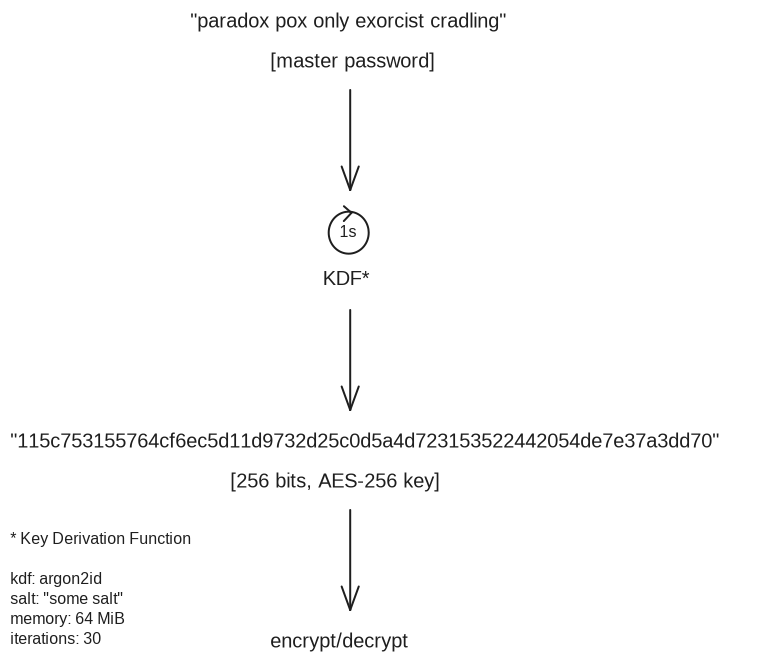
Back when we talked about the service layer, we mentioned the use of a hashing function, such as SHA-256, which transforms a user-sent password into 256 bits of jargon before the service stores it for you. The same hashing strategy can be used by your password manager to transform the password you remember into the actual AES-256 key.
Both for you and the service, there’s one issue with using SHA-256: it is quite fast to compute on modern hardware. Why is this a problem, you ask? Wouldn’t the service want to hash user passwords quickly? And wouldn’t we want our database unlocking step to be fast so we don’t have to wait? You might think we would want that, but think about the attacker’s angle as well. If an adversary gains access to your password database and starts trying out different combinations to unlock it, faster attempts will result in a greater number of attempts per second. This means that you actually want your password database to be slightly slow to unlock.
Most password managers don’t use SHA-256 to derive your key, instead opting for special purpose key derivation functions that include additional features such as being harder to compute. Some password managers may even let you configure the time it takes to open your database. Don’t pick the minimum available number thinking it’s making only your life easier. Around one second is usually a good middle ground between usability and security.
The takeaways from this section:
- picking a password depends on its use:
- use long, unique, randomly-generated combinations of letters, digits, and special characters for each account password
- consider strong but easy-to-remember passphrases for your master password
- take the time to strengthen all your existing account passwords
- burn your post-it notes
- double-check your password manager’s settings and make sure a reasonably slow key derivation step is in place
Conclusion
Securing all your personal accounts is a great first step toward the never-ending journey that is cybersecurity. Even if you don’t adopt all the recommendations immediately, just being aware of the basic things that are happening behind the scenes of your online activity should already help you guide how you make decisions.
If you do adopt every takeaway in this article then congratulations. You’ve graduated to the next level of this very much unofficial martial arts course. The knowledge and skills will carry through the rest of your life.
But I haven’t covered half of what I could still cover. For example, I mentioned the use of cloud storage for personal photos in the introduction. Securing the respective account with a strong and unique password and making sure the photos are transferred via HTTPS can be a good step to reduce the chances someone else can see them, but how about what the cloud providers themselves see? How much are you comfortable sharing? We haven’t thouched on the basics of online privacy and how it relates to security.
Feel free to reach out if you’d like to see a continuation, or if you have feedback on this specific one.
Good luck on your personal cybersecurity journey.